Friday, September 17, 2010

Setting up an NFS server for CentOS

These steps show how to setup a basic NFS server for CentOS.

For the NFS Server side:

1. Make sure you've installed NFS server by typing on the terminal:

  • rpm -qa | grep nfs
This will show:
nfs-utils-lib-1.0.8-7.6.el5
nfs-utils-1.0.9-44.el5
system-config-nfs-1.3.23-1.el5
  • chkconfig --level 35 nfs on
  • service nfs start


2. Go to System>Administration>Server Settings> NFS

3. Click Add:


  • in my example, I chose /var/ftp as the directory which I will share for the network and * for hosts (this will accept all client, best practice is enter the specific ipaddr and netmask e.g. 192.168.0.1/255.255.255.0) for testing purposes only.
  • On User Access tab choose Treat remote root user as local root.
4. After that, this will show...


note: I also added some directories.

5. Now, on the tricky part...

NFS has a dynamic port assigned by the portmap... (so what does that mean?) You'll have difficulty filtering those port on the firewall.

So to do that ->

  • gedit /etc/sysconfig/nfs
  • uncomment or remove the # sign on these port configuration
LOCKD_TCPPORT=32803
LOCKD_UDPPORT=32769
MOUNTD_PORT=892
RQUOTAD_PORT=875
STATD_PORT=662
STATD_OUTGOING_PORT=2020
  • Then save.
6. Restart the services

  • service nfs restart
  • service portmap restart
note: check if the port was used by typing "rpcinfo -p"

7. We're nearly done, now on to the firewall. Type on to the terminal "gedit /etc/sysconfig/iptables" and add these to filter those port that we just enabled.

-A RH-Firewall-1-INPUT -s 112.203.69.110/255.255.128.0 -m state --state NEW -p udp --dport 111 -j ACCEPT
-A RH-Firewall-1-INPUT -s 112.203.69.110/255.255.128.0 -m state --state NEW -p tcp --dport 111 -j ACCEPT
-A RH-Firewall-1-INPUT -s 112.203.69.110/255.255.128.0 -m state --state NEW -p tcp --dport 2049 -j ACCEPT
-A RH-Firewall-1-INPUT -s 112.203.69.110/255.255.128.0 -m state --state NEW -p tcp --dport 32803 -j ACCEPT
-A RH-Firewall-1-INPUT -s 112.203.69.110/255.255.128.0 -m state --state NEW -p udp --dport 32769 -j ACCEPT
-A RH-Firewall-1-INPUT -s 112.203.69.110/255.255.128.0 -m state --state NEW -p tcp --dport 892 -j ACCEPT
-A RH-Firewall-1-INPUT -s 112.203.69.110/255.255.128.0 -m state --state NEW -p udp --dport 892 -j ACCEPT
-A RH-Firewall-1-INPUT -s 112.203.69.110/255.255.128.0 -m state --state NEW -p tcp --dport 875 -j ACCEPT
-A RH-Firewall-1-INPUT -s 112.203.69.110/255.255.128.0 -m state --state NEW -p udp --dport 875 -j ACCEPT
-A RH-Firewall-1-INPUT -s 112.203.69.110/255.255.128.0 -m state --state NEW -p tcp --dport 662 -j ACCEPT
-A RH-Firewall-1-INPUT -s 112.203.69.110/255.255.128.0 -m state --state NEW -p udp --dport 662 -j ACCEPT
  • First, change the ipaddr and netmask specified to your Server IP address. In my example I used 112.203.69.110/255.255.128.0 as my Server IP address.
  • Second, add these lines before the...
-A RH-Firewall-1-INPUT -j REJECT --reject-with icmp-host-prohibited
  • Save and restart iptables services by typing "service iptables restart"
8. We're done. Disabling the firewall will be much lesser work because you don't have to do Step 5 up to the firewall settings.

Now on to the Client Side:

1. There's no daemon to start nfs client. Just make a directory on to the /mnt by typing "mkdir /mnt/nfs" (on this example I use nfs, you can enter whatever name here).

2. Then mounting the folder...

  • type "mount -t nfs 112.203.69.110:/var/ftp /mnt/nfs"
  • This will mount the shared folder by the server.
3. For troubleshooting,

  • make sure that you can see the portmap on the server by "rpcinfo -p 112.203.69.110" (or the IP address of your server).
  • Repeat Step 5.
  • make sure that there's no typo.
  • disable the firewall.
4. Done.

Please let me know if you have any questions or any non-violent inputs :). Cheers!


Friday, September 3, 2010

Installing alsa-driver in CentOS

First, I can assure you that linux is effin not driver friendly especially in Enterprise versions such as RHEL and CentOS. So let's get things started.

1. Make sure you have the SBx00 Azalia (Intel HDA) by typing at the terminal -> 'lspci | grep Audio' (case sensitive w/o the quote).

Having this audio device esp. in laptops, have high possibility that your experiencing no audio on the speaker, mic is not working or headphone jack doesn't work either. Editing the /etc/modprobe.conf and adding to the option line "model='whatever model alsa said on its website doesn't work either'".

If you manage to have a workaround on this without doing the next step. Please let me know.

2.If you tried mixing up the settings in 'alsamixer' and still no luck, go fire up the terminal and 'cd' to '/etc/yum.repos.d'.

3. Type 'touch ATrpms.repo'. Then 'gedit ATrpms.repo' for easier editing.

4. Copy and paste this to the file and save.

[atrpms]
name=EL $releasever - $basearch - ATrpms
baseurl=http://dl.atrpms.net/el$releasever-$basearch/atrpms/stable
gpgkey=http://ATrpms.net/RPM-GPG-KEY.atrpms
gpgcheck=1
enabled=1
exclude=*kmdl*i586*
includepkgs=*alsa*

5. Copy paste to terminal:

rpm --import http://ATrpms.net/RPM-GPG-KEY.atrpms

6. 'yum install alsa-driver'

7. This will install 2 additional packages, the kml and the kernel update. After install, reboot.

8. You may also want to include the 'kernel-devel' and 'kernel-headers' just incase you will rebuild any device conflicts on the kernel update. (e.g. my fglrx driver for ATI)

9. After reboot, you can notice now that there's a headphone volume and addtl mic volume.

Cheers!


Saturday, August 28, 2010

Atheros AR8151 driver for CentOS

I just bought a Gateway ECN1301i laptop (o yeah!) and I just thought, I should install a CentOS Linux into it. But when the time I "lspci" and checked for network connection, I found out that both wired and wireless devices aren't installed yet.

I googled and search about for 4-5 painstakingly hours, and when I about just to give up... I almost forgot that this device is using the "atl1e" driver ->

Which was on my previous post. So heres the link -> http://elrepo.org/linux/elrepo/el5/i386/RPMS/

kmod-atl1e-1.0.1.9-1.el5.elrepo.i686.rpm

This will just saves you from compiling those linux driver available from atheros website.


Monday, July 19, 2010

Atheros L1 Gigabit Ethernet driver for CentOS

Err, it's been awhile since I last posted here, I'd been busy pursuing my undergrad course on Technological University of the Philippines. Since I've got most of the time on our home, I've decided to install "again" CentOS (5.5) to my desktop and configure a LAMP server.

Unfortunately, my desktop PC is equipped with P5L-MX motherboard that has a built-in Atheros LAN NIC that doesn't automatically installed on CentOS.

Here, I found a site that has the kmod-atl1 driver for my NIC. 

Just a quick reference for me in-case I've forgot where the heck could it be.

driver name: kmod-atl1-1.2.40.3-3.el5.elrepo.i686


Saturday, May 22, 2010

Share Internet connection thru wireless adapter w/o using router.

This steps helps you share your internet connection (wirelessly) w/o requiring a router.

What you need:

a. Wireless adapter (most laptops have already a built-in one).

b. Windows 7 (Maybe applicable to Vista).

1. Go to your Network and Sharing Center (accessible through the Notification area or you can type on the start menu "Network and Sharing Center").


2. Make sure first that you have a wireless adapter installed by checking if there is a Manage wireless networks on the top left panel of the window - and then click Set up a new connection or network.

3. Choose Set up a Wireless ad-hoc (computer-to-computer) network.

4. Then click Next.

5. Enter your preferred Network Name or SSID / Security type / and Security Key.

In my example, I chose a No authentication (Open) so there's no need to fill up a Security Key. Then Click Next.

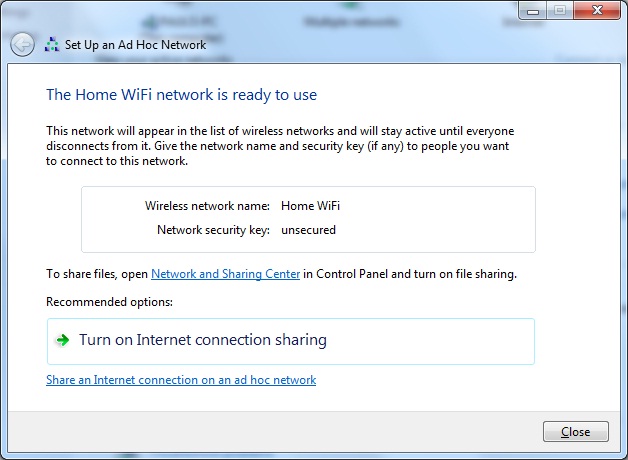
6. After the setup of the Wireless network, we need to share its internet connection. Click Turn On Internet connection sharing.

7. Wait just a sec after configuring then click Close.

8. Verify your Wireless network on the Notification area. Now you can share your internet connection wirelessly.


9. Done. Let me know if I missed something. Cheers!


Tuesday, April 27, 2010

Is Firefox really that bad on CentOS?

I'm still wondering why the heck Firefox in CentOS isn't good as it's M$ version. 

Several drawbacks I noticed :

1. Flash object loads intermittently, needs to refresh site several times to load (including YouTube videos darn it).

2. Fonts used by Firefox is really bad, imo.

3. Firefox frequently hangs on some website.

So I searched for a better alternative browser for CentOS, Google Chrome isn't in the list (no available rpm's, there's a workaround but still ain't stable) neither Safari (doesn't support my OS but should be installed on Wine or on a Virtualbox) and Swiftfox (doesn't work either).

And I bumped to Opera which the browser I also used in my M$ desktop. So far, it's more stable than Firefox except I get some hiccups when playing video on certain websites (not including YouTube).

And the last thing I like about it is... more viewable window! (My Lenovo S10 really lacks workspace, that's why).


Too bad 10.51 full is not yet available on CentOS (only beta source). 

Once you've installed it and didn't liked it, you can uninstall :

#yum erase opera

or

#rpm -e opera


-pau


Monday, April 19, 2010

Frustrated about Linux's zip apps!

Well, I've been downloading files from the net that has a multiple split zip archive. ( .z01, .z02, zip, etc...) And I just found out that CentOS / RHEL has a limit when unzipping files greater than 4Gb!

I tried 'yum install p7zip' but still, no luck. 

There's also a blog entry with his workaround...

#cat file.z01 file.z02 >> filename.zip

#7za e filename.zip

but, still FAIL. Dang... I can't imagine that it would be this complicated just to extract a file.

I ended up extracting to my Win 7 desktop. boo!

If you have any solutions, please post. ("\(^____^)/")

-pau